
 55 Park Road,


Recently, a well-established local business called us out of the blue. They’d never worked with us before. Early that morning, one of their email accounts had been taken over and used to send a fake “document shared with you” email to more than a thousand of their contacts.
They picked up the phone straight away, and that made all the difference. Here’s what we found, how we fixed it, and why setting up MFA without a phone is far easier than most people think.
What we found
Nothing about this attack was sophisticated. It came down to three everyday things that we see in businesses of all sizes.
1. The busiest inbox was also the master key. The account that was taken over was the business’s general email address, the one on the website, which several people use. Over the years it had also been given full admin control of their Microsoft 365. So one stolen password gave access to far more than an inbox.
2. MFA had been set up, but never switched on. When we asked why, the answer was completely human. One team member didn’t want to own a mobile phone, and since most people think MFA means “approve it on your phone”, it was simply left off for everyone. Nobody realised MFA without a phone was an option. So in the end, a password was all it took.
3. The spare key was in the wrong place. The business’s other main admin account had a password-reset option pointing to a personal email address. That personal account had already been compromised, which meant someone else potentially held the spare key.
All three were decisions made years ago, with good intentions, that nobody had a reason to revisit, until now.
What we did together
- Locked the door: we immediately blocked the account and signed the intruder out of every device. This is the first step in any cyber incident response.
- Saved the evidence: on the free tier of Microsoft’s sign-in service, some records are only kept for seven days, so we collected them before they disappeared, and switched on full activity logging.
- Tidied up admin access: the shared inbox no longer has admin rights.
- Started fresh: we gave everyone new passwords, cleared out every old sign-in and recovery method (including the personal email), and signed everyone out.
- Switched on MFA properly, and checked it: this is where it got interesting. We turned on Microsoft’s built-in security settings, then checked the sign-in records, and found an account still getting in with just a password. The built-in settings give everyday staff a 14-day grace period to set up MFA. We removed that grace period, so every staff member now needs a second check, starting immediately.
Meanwhile, the attacker kept trying to get back in from overseas, and every attempt failed.
MFA without a phone: the best bit
This is the part I want every business owner to hear. If someone on your team doesn’t have a smartphone, or doesn’t want one, MFA without a phone is simple. Here are the options:
- A security key: a small USB device, about the size of a house key. Plug it in or tap it to sign in. It’s one of the safest options available, and keys start from around $50.
- Your computer: work laptops can be set up to use a fingerprint, face recognition or a PIN.
- A temporary code: an IT admin can give someone a one-off code to help them get set up.
One person’s situation shouldn’t decide the security of the whole business. Find the option that suits them, and protect everyone. If you’re not sure which MFA without a phone option suits your team, our IT security team can help you choose.
Where ASD Essentials fits in
The Australian Signals Directorate (ASD) has just announced ASD Essentials, the replacement for the well-known Essential Eight.
Instead of a checklist of eight controls, ASD Essentials focuses on outcomes, and it starts with identity: who can sign in to your systems, and how. Its own examples include phishing-resistant MFA, like the security keys mentioned above.
The transition will happen over the next year or two (ASD has published a guide on transitioning from the Essential Eight). But this story shows why identity is first on the list: every lesson here comes back to who can sign in, and what protects that sign-in.
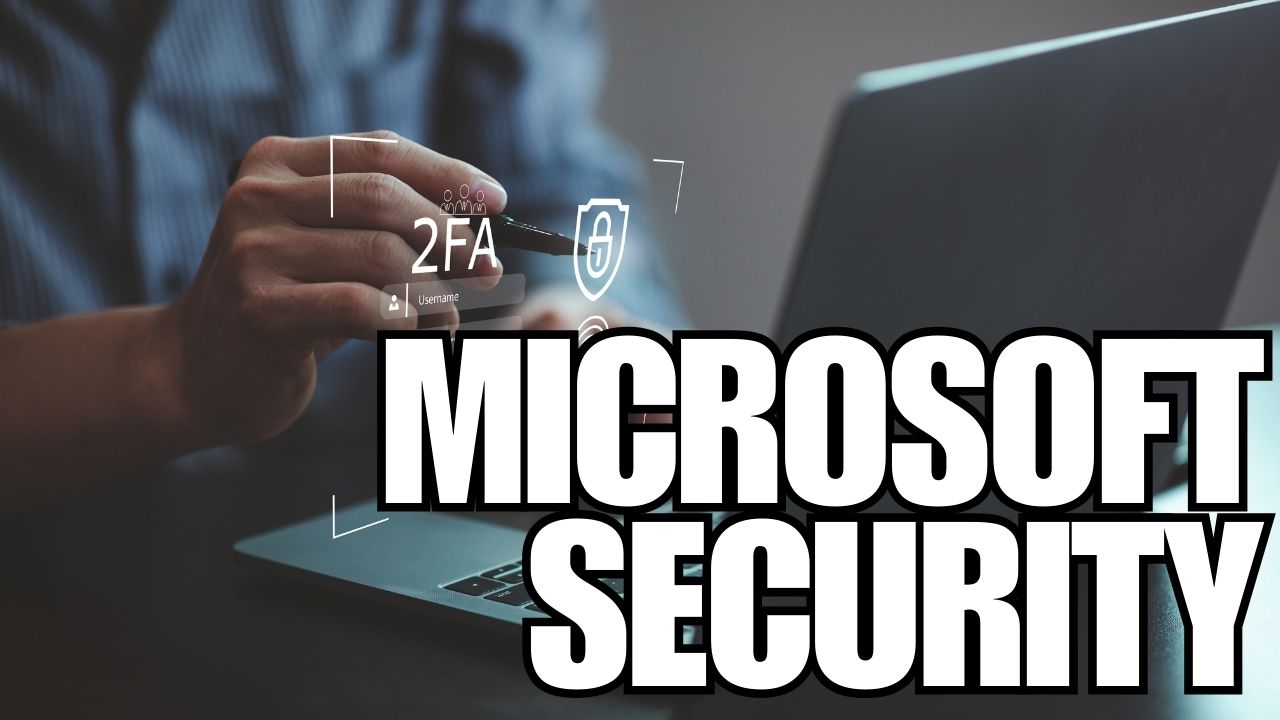
Four simple lessons for Microsoft 365 security
- The inbox the public emails shouldn’t run your systems. Keep admin access separate.
- “Switched on” isn’t the same as “working”. Check your sign-in records to confirm MFA is actually being used, including for anyone using MFA without a phone.
- Know where your spare keys are. Password-reset options should go somewhere the business controls, not a personal email or an old phone number.
- Turn on your records now. You can’t go back and look at activity that was never recorded. Tools like ITDR for Microsoft 365 watch sign-ins around the clock, so a stolen account is spotted fast.
A good outcome
Because this business acted quickly and worked with us at every step, the damage was contained and their systems are now in far better shape than before. They also have a clear set of next steps to keep improving, aligned with the new ASD Essentials framework, including stronger email security.
They called on a tough morning, and came out of it stronger.
Frequently asked questions
Can you use MFA without a phone?
Yes. Microsoft 365 supports MFA without a phone. Staff can sign in with a hardware security key, or with a fingerprint, face recognition or PIN on a properly set-up work computer. An IT admin can also issue a temporary access code so a new user can get set up safely.
What is the safest option for MFA without a phone?
A hardware security key is one of the safest choices. It’s phishing-resistant, which means a fake login page can’t trick it into handing over access. It’s also simple to use: plug it in or tap it, and you’re in.
Does MFA without a phone cost much?
Not really. Security keys start from around $50 each, and the fingerprint or PIN option is usually built into the work laptops a business already has. Compared with the cost of an email account takeover, it’s a small investment.
What is ASD Essentials?
ASD Essentials is the Australian Signals Directorate’s new cyber security framework, replacing the Essential Eight. It focuses on security outcomes and starts with identity, meaning who can sign in to your systems and how well those sign-ins are protected.
Ask yourself this week
- Who has full admin access to our systems (email, files, finance software, IT accounts), and should they?
- Does every person need more than a password to sign in?
- Where do our password-reset codes go?
- If someone on our team doesn’t use a smartphone, have we set them up with MFA without a phone?
- If someone stole my password today, would anything stop them?
If you’re not sure, that’s a great reason to find out, before you need to. Get in touch with our team for a quick check of your Microsoft 365 security.


